 By Emily Parker
Updated November 2026
If you have searched for a bluetooth codec changer phone is not supported error, you are probably looking at a menu that shows only SBC or AAC, or an app that refuses to load on your handset. This guide explains why that happens, how to confirm what your phone can actually do, and the workarounds that usually restore codec choice. You will finish with a clear plan: check your phone, change what you can, and pick hardware that gives you the codec you want.
Why a Phone Says a Bluetooth Codec Changer Is Not Supported
A codec is the method used to compress audio before it is sent over Bluetooth. Phones only offer codecs that their operating system and Bluetooth chipset support. When people talk about a “codec changer,” they usually mean a setting or app that lets them choose between options such as SBC, AAC, aptX, LDAC or LC3. If that option is missing, the cause is almost always one of four things: the phone firmware does not expose the setting, the chipset lacks the codec license, the app is blocked on your device, or the headphones or speaker do not offer the codec you are trying to select.
Shopping for one? See our guide: Bluetooth Codec Changer Windows: 8 Best Picks for PC Audio (2026).
Codec support is also split between the phone and the receiving device. A codec only works when both ends support it. Your phone might be capable of LDAC, but if your earbuds only handle SBC and AAC, the connection will fall back to the highest codec both devices share.
Step 1: Confirm Which Codecs Your Phone Supports
Before changing anything, find out what your phone can do. Manufacturers publish codec lists in spec sheets, but the most reliable check is on the phone itself. Many Android models show the active codec under Bluetooth device settings, while iPhones generally handle codec selection automatically and do not expose a manual menu.
- Pair your headphones or speaker with the phone.
- Open Settings, then Connected devices or Bluetooth, and tap the gear icon next to the device.
- Look for an audio codec or Bluetooth audio section. Note which codecs are listed and which one is selected.
- If no codec section appears, check the phone’s model page on the manufacturer’s site for the supported Bluetooth audio codecs.
Checklist: What to Note Before You Troubleshoot
- Phone make, model and Android or iOS version
- Headphone or speaker make and model
- Codecs the headphones list in their manual (often SBC, AAC, aptX or LDAC)
- Whether Developer options is available on your Android device
- Whether the error appears only in one app or across the whole system
Step 2: Use the Built-In Codec Setting on Android
Many Android phones include a Bluetooth audio codec setting hidden inside Developer options. Enabling Developer options is simple, but it should be done with care because it exposes advanced system controls. Only change values you understand.
- Open Settings, then About phone, and tap Build number seven times until you see a confirmation message.
- Go back to Settings and open System, then Developer options.
- Scroll to the Bluetooth audio codec entry. Choose the codec you want, such as LDAC or aptX HD, if it is listed.
- Turn Bluetooth off and back on, then reconnect your headphones.
If the option is missing, your phone’s firmware probably does not expose codec switching. Some manufacturers only enable it on certain models or regional builds. Owners often report that the setting appears after a firmware update, so check for system updates before assuming the feature is gone.
Step 3: Try a Third-Party Codec Changer App (With Caution)
Some developers publish apps that claim to force a codec on Android. These apps usually work by writing to system Bluetooth settings, which requires specific permissions and, on some devices, root access. Results depend heavily on the phone model and Android version. Many apps that promise universal codec switching work only on a narrow set of devices, and a few are unreliable or unsafe.
Before installing any of them, read recent user feedback for your exact model, download only from a source you trust, and avoid apps that ask for unnecessary permissions. Modified APK files from unofficial sites carry real security risk. For a deeper look at what these tools do and the risks involved, see Bluetooth Codec Changer Mod APK: What It Does and How to Use It Safely.
Step 4: Fix a Codec Setting That Won’t Stay Put
Sometimes the codec menu shows your choice, but the connection reverts to SBC after a reboot or when you start a call. This usually points to the headphones, a dropped connection, or a bug in Bluetooth stack settings. Work through these checks in order:
- Forget the device in Bluetooth settings, restart the phone, and pair again.
- Make sure the headphones’ firmware is current. Many manufacturers add codec support through updates.
- Turn off battery optimization for the app you are using to stream, if one is involved.
- Disable any Bluetooth LE Audio or similar experimental features that may override codec negotiation.
Step 5: Match Your Hardware to the Codec You Want
If your phone supports a codec that your headphones do not, no software change will fix it. The table below compares common codecs and what they usually require, so you can judge whether the gap is in your phone or in your audio hardware.
| Codec | Typical use | What it needs from both devices |
|---|---|---|
| SBC | Universal baseline | Every Bluetooth audio device supports it |
| AAC | Apple devices, many Android phones | Licensed support on phone and headphones |
| aptX / aptX HD | Many Android phones and Qualcomm-based earbuds | Qualcomm licensing on both ends |
| LDAC | High-resolution streaming on supported Android phones | Sony-licensed support on both devices |
| LC3 | Newer LE Audio devices | Bluetooth LE Audio support on phone and accessory |
For a clearer picture of how these compare on sound and latency, see What's the Best Bluetooth Audio Codec? SBC vs AAC vs aptX vs LDAC. If you care about delay during video or gaming, Low Latency Bluetooth Codec: How to Pick and Use One (2026) covers that trade-off.
Step 6: Use a Bluetooth Transmitter for Codec Control
When the phone cannot offer the codec you want, a Bluetooth transmitter plugged into the headphone jack or a USB port can provide it. The transmitter pairs with your headphones and handles encoding itself, so codec choice depends on the transmitter and the headphones rather than the phone. This is often the most reliable route for older phones that lack codec menus.
Common Mistakes
- Assuming iPhones have a manual codec menu. iOS handles codecs automatically, so you cannot force a specific one.
- Installing unofficial codec apps from random download sites.
- Ignoring firmware updates on both the phone and the headphones.
- Changing hidden developer settings without writing down the original value.
- Expecting a higher-quality codec to help when the source file is low resolution. Streaming services often cap bitrates regardless of codec.
Tips for Getting Better Wireless Audio
- Check the codec actually in use, not just the one you selected.
- Keep the phone close to the headphones to reduce dropouts that can force a fallback to SBC.
- Use wired headphones or a USB-C DAC if you need the highest fidelity and the phone’s codec options are limited.
- Recheck codec settings after major Android or iOS updates, since behavior can change.
Recommended gear
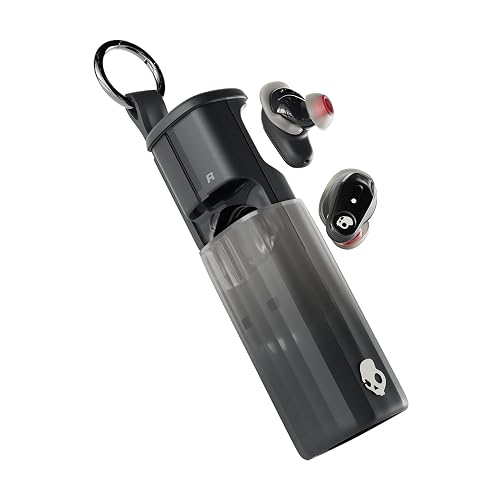
A Bluetooth transmitter is the most practical hardware fix when your phone cannot change codecs. Look for one that lists the specific codecs you need, such as aptX or LDAC, and confirm it pairs with your headphones before buying.
- Bluetooth transmitter with aptX support: Adds an aptX-capable link to phones and TVs that only offer SBC or AAC. View on Amazon
- Bluetooth transmitter with LDAC support: Useful when you want Sony’s high-resolution codec on a source that does not offer it. View on Amazon
- USB-C to 3.5mm adapter with DAC: Gives wired headphones a cleaner output path when your phone lacks a headphone jack. View on Amazon
FAQ
Why does my phone only show SBC?
Your phone may lack the licensed codecs, or the headphones may not support anything better. SBC is the mandatory baseline, so it appears when nothing else is shared between the two devices.
Can I change the codec on an iPhone?
Not directly. iOS selects the codec automatically based on what the headphones support, usually AAC or SBC. You cannot force LDAC or aptX on an iPhone.
Is it safe to use a codec changer app?
It depends on the app and where you get it. Apps that need root access or come from unofficial sources carry security risks. Stick to well-reviewed tools and check that they work on your exact model.
Does a higher codec always sound better?
Not always. Sound quality also depends on the source file, the headphone driver and the connection stability. A stable AAC connection can sound better than an unstable LDAC one.
Will updating my phone add codec support?
Sometimes. Manufacturers occasionally add codec options through firmware updates, but they do not guarantee it. Check the release notes for your model.
Do I need a transmitter if my headphones already support the codec?
No. A transmitter is only useful when the phone lacks the codec you need. If both the phone and headphones support it, pairing directly is simpler.
Who should I ask for help if my audio problems persist?
If the issue involves damaged hardware or a persistent Bluetooth fault, contact the phone or headphone manufacturer’s support team or a qualified repair technician.
Conclusion
A bluetooth codec changer phone is not supported message usually means your phone, your headphones, or the software between them does not offer the codec you want. Start by confirming what your phone and headphones each support, then try the built-in Android setting or a firmware update. If neither works, a Bluetooth transmitter is the most dependable path to the codec you need.
Related reading
Ready to choose one?
About Emily Parker
Emily Parker is part of our editorial team and reviews and edits our headphone tech & types guides, checking product details against manufacturer specifications and owner feedback.